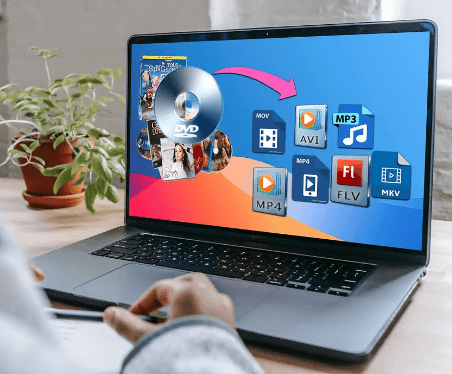
In today’s digital era, you may need to safeguard your DVD content by backing it up onto computers or other devices, mitigating the risk of loss or damage. However, many DVDs come with built-in protection measures that prevent direct copying to alternative storage, necessitating the use of specialized tools capable of circumventing these protections.
Furthermore, to ensure compatibility across diverse devices, it might be advantageous to rip protected DVDs into a more universal video format, thereby allowing seamless playback on any platform. This article outlines three efficient methods to achieve these goals, empowering you to preserve and enjoy your DVD collections without limitations.
1. Rip Copy-protected DVD with VideoByte BD-DVD Ripper
VideoByte BD-DVD Ripper stands out as a versatile solution for tackling copy-protected DVDs. It boasts compatibility with all the latest DVD protection schemes, seamlessly bypassing restrictions and unlocking region codes to extract your content. With a wide array of output formats, it ensures seamless playback across devices and players, from smartphones to smart TVs. The user interface is intuitive, making the ripping process a breeze, even for first-time users. Moreover, VideoByte BD-DVD Ripper maintains high-quality video and audio output, preserving the original charm of your DVD collection. Its fast processing speed further enhances the overall experience, allowing you to enjoy your digitalized content in no time.
How to Rip Protected DVD via VideoByte BD-DVD Ripper
Step 1. Import DVD Disc
In order to rip the protected DVD, you need to upload the DVD first by connecting the drive to the computer and inserting the DVD into the drive. Then, click the “Load DVD” button and select the drive that includes your DVD.
If you want to load a DVD ISO image file or a DVD folder, you have the flexibility to either click on the drop-down menu of the “Load DVD” button or conveniently drag and drop the desired ISO file/folder directly onto the main interface for instant access.

Step 2. Select the Desired DVD Content
When importing the DVD content successfully, it will automatically detect the main movie for you to convert. If you also want to choose other content, then click the “Full Title List” and pick other titles from the pop-up window.

Step 3. Select the Output Format
To rip a DVD movie to the ISO image file or DVD folder, click “Rip DVD to Video/Audio”– “Rip to DVD Folder” or “Rip to ISO File”.

For those who’d like to rip DVD movies to digital video/audio format, you can click on the “Output Format” button and select the appropriate output format on the window.

Step 4. Rip DVD Movie disc
When it comes to the procedure of ripping, you can first go to the “Save to” section where you can change the destination folder to save DVD content. Lastly, click on the “Rip All” button to initiate the ripping process.

2. How to Rip Copy-protected DVD with MakeMKV
MakeMKV is also a common tool that is capable of ripping copy-protected DVDs to some other formats. While it excels in bypassing DVD protections, it does have some limitations compared to VideoByte BD-DVD Ripper. For example, MakeMKV primarily outputs MKV formats, which may not be relevant to some users’ needs. Additionally, the lack of built-in compression can result in larger file sizes and longer waiting times, bringing some kind of inconvenience. But MakeMKV still offers a straightforward process.
Ripping a Copy-protected DVD with MakeMKV:
Step 1. Load the protected DVD to MakeMKV
Place the target DVD into your optical drive, subsequently launch MakeMKV, and promptly press the button designated for your optical drive within the application’s interface to initiate the reading process of your DVD.

Step 2. Choose the converted content.
Upon loading the source DVD, MakeMKV will present its contents in a structured tree format. At this point, you should meticulously select the desired title(s), audio tracks, and subtitles that you wish to convert and preserve in MKV format.
Step 3. Rip the protected DVD.
Simply click on the yellow folder icon to specify the destination directory where you want to save the output MKV file. Then, press the button under Make MKV, and it will commence copying files from the copyright-protected DVD. During this process, you can monitor the progress, elapsed time, and the time remaining until completion.

3. How to Rip Copy-protected DVD with VLC
VLC Media Player, while versatile, also faces restrictions when attempting to rip copy-protected DVDs to common formats. Chief among these drawbacks are its operational complexity, potential incompatibility with newer DVD protection schemes, and the necessity for additional configuration files to handle protected content. Furthermore, the output quality can be inconsistent, leading to a suboptimal viewing experience.
Step 1: VLC Media Player Setup
Start by downloading and installing VLC Media Player from its official website. Choose the version that is compatible with your operating system (Windows, Mac, Linux, etc.). Note that while VLC can stream to mobile devices, it cannot directly rip copy-protected DVDs to mobile formats due to the limitations of libdvdcss.
Step 2: Integrating libdvdcss
To rip copy-protected DVDs, you’ll need to install libdvdcss, a library that bypasses DVD copy protection. Follow the installation instructions similar to those for Handbrake. For Windows, copy the libdvdcss-2.dll file to VLC’s plugin directory. On Mac, place the libdvdcss.2.dylib file in “/user/local/lib”.
Step 3: Load and Rip the DVD
Next, launch the application and navigate to the ‘Media’ tab within the menu bar. From there, select ‘Convert/Save…’ to open the Open Media window. Within this window, click on the ‘Disc’ tab and select ‘DVD’ as your disc selection option. Next, identify your DVD drive letter from the list of Disc devices and click on ‘Convert/Save’ to proceed. This will initiate the process of converting or, in this case, ripping the content from your DVD.

Step 4: Select the Output Format
In the Convert window, carefully choose an output format that suits your needs. Customize your settings according to your preferences, and don’t forget to specify the destination folder for your ripped file. Additionally, if you’re only interested in a specific part of the DVD, set the start time to save time during the conversion process.
Step 5: Initiate the DVD Ripping Process
With all the necessary settings in place, simply click the “Start” button to commence the DVD ripping. Remember, the duration of this process can vary significantly, depending on the length of the movie and your computer’s processing speed. If you’re looking to digitize your entire DVD collection, be prepared for a potentially lengthy process. For faster copying, consider using specialized software like WinX DVD Ripper Platinum or MakeMKV, which are designed to streamline the ripping process.
Conclusion
In conclusion, this post provides you with three different ways to help you decrypt the protected DVDs easily and then offers you permanent possession of their content. VideoByte BD-DVD Ripper, MakeMKV, and VLC Media Player can all meet your needs to some extent. However, by investigating and trailing, VideoByte BD-DVD Ripper wins greatly because of its comprehensive functions and user-friendly interface and operation. Seeing is believing, let’s try it now!
